
How to Design an Ergonomic Workstation for Any Office?

An office workstation can look polished and still create daily strain. A chair may support the back, yet a high monitor can keep the neck tilted for eight hours. Ergonomic workstation design connects furniture, screen position, lighting, movement, and individual body measurements. It is not a decorative upgrade. It is a practical risk-control process.

The World Health Organization reported that low back pain affected approximately 619 million people globally in 2020. It also projects cases could reach 843 million by 2050, largely because populations are growing and aging (WHO, 2023). EU-OSHA’s OSH Pulse survey found that musculoskeletal problems remain common among European workers, including back, shoulder, and neck discomfort (EU-OSHA, 2022). These findings support a workstation approach based on prevention, not temporary comfort.

Start with the user’s real working posture. Keep both feet supported, place the keyboard near elbow height, and position the top of the monitor around eye level. A small gap between the screen and face can reduce forward leaning. Keep frequently used items within relaxed reach. Lighting should prevent reflections across the display, especially near windows. Short movement breaks still matter.

No setup is perfect.

An experienced occupational ergonomist can assess unusual needs, including previous injuries, different body sizes, laptop use, and hybrid work. Standards such as ISO 9241-5 provide useful guidance for office workstation layout, but they cannot replace observation. People change posture, shift tasks, and sometimes ignore good advice. That is the part worth reviewing. A successful design should be tested after several workdays, adjusted honestly, and reviewed again when discomfort appears.
How to Design an Ergonomic Workstation for Any Office?

Assess Your Work Habits, Space, and Ergonomic Needs

How to Design an Ergonomic Workstation for Any Office?

Assess your work habits before changing your equipment. Track how often you type, use a mouse, read, join calls, or switch between screens. Notice your posture during busy periods, not only when you sit correctly. Do your shoulders rise while concentrating? Does your wrist bend toward the keyboard? These details reveal your real ergonomic needs. A short daily note can expose habits that memory misses.

Then examine the space. Your screen should sit roughly an arm’s length away, with its upper edge near eye level. Keep frequently used items within easy reach. Place both feet firmly on the floor or use a stable footrest. Leave enough room to move your chair without hitting drawers or cables. Reduce glare by changing the screen angle or adjusting nearby lighting. Small changes often matter more than expensive furniture.

I once raised my screen too high because a general guide suggested it. My neck felt worse after several hours. The lesson was uncomfortable: standard advice needs personal testing. Adjust one feature at a time, then observe your body over several work sessions. If pain, numbness, or persistent fatigue appears, seek advice from a qualified occupational health professional. A workstation can look perfect and still fail your routine. Your actual movements matter most.


Choose and Position an Adjustable Desk and Chair

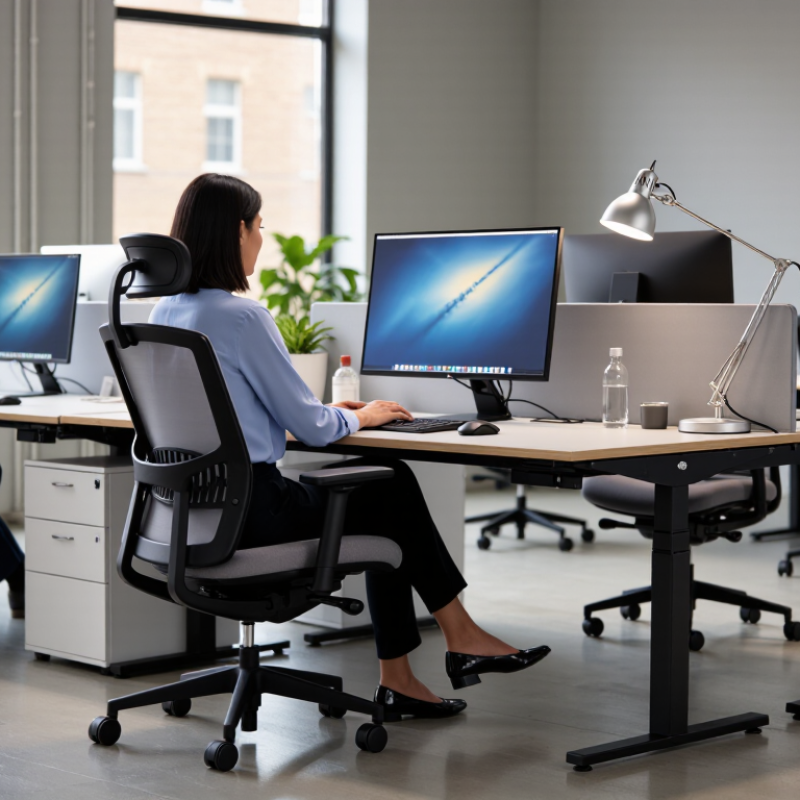
An ergonomic workstation begins with two adjustable tools: a desk and a chair. Choose a chair with adjustable height, seat depth, back support, and armrests. Your feet should rest flat on the floor, while your knees stay close to a right angle. Sit fully back, allowing the backrest to support your natural posture. Do not force your shoulders downward.

Set the desk after adjusting the chair. Your elbows should remain near your sides, bent around 90 to 100 degrees, with your forearms level or slightly sloping downward. Keep the keyboard and mouse close, so you do not reach forward repeatedly. Position the monitor directly in front of you, roughly an arm’s length away. Its top edge should sit near eye level, although personal comfort matters more than a rigid measurement.

Test the setup during real work, not only while sitting still. After twenty minutes, notice pressure under your thighs, tension in your neck, or raised shoulders. Make one small adjustment at a time. A sit-stand desk can help you change position, but standing all day is not automatically better. Alternate between sitting and standing, and keep both surfaces stable. In my experience, perfect posture rarely lasts through a busy afternoon. The goal is a flexible workstation that makes comfortable movement easier.

How to Design an Ergonomic Workstation for Any Office?

Recommended adjustment ranges for an adjustable desk, chair, and monitor. Use the settings that keep your shoulders relaxed, elbows close to the body, and feet supported.

Measurements are shown in centimeters. Desk and chair ranges are based on common office ergonomics guidance; monitor distance should be adjusted for comfortable, readable viewing. Sources: OSHA Computer Workstations and CCOHS Office Ergonomics.

Set Up Your Monitor, Keyboard, and Mouse Correctly

A good workstation begins with the monitor, not the chair. Place the screen about 20–30 inches from your face, as OSHA recommends for computer workstations. Keep the top edge at, or slightly below, eye level. Your eyes should meet the upper third of the display without bending your neck. Tilt the screen gently upward if overhead lighting creates glare. A window behind the screen often causes tiring reflections.

Keep your keyboard close enough that your elbows stay beside your body. Aim for elbows near 90 degrees, relaxed shoulders, and wrists straight rather than angled upward. The mouse should sit beside the keyboard, not several inches away. This small detail matters. NIOSH identifies repetitive motion, force, and awkward postures as common ergonomic risk factors. In practice, I have seen people adjust their chair repeatedly while leaving the mouse too far forward. That habit quietly pulls the shoulder all day. Move it closer.

The EU-OSHA 2022 OSH Pulse survey reported that 60% of workers experienced musculoskeletal complaints. That figure deserves attention, though a perfect setup cannot remove every cause. Change posture during the day. Shift the mouse between short tasks, reduce unnecessary clicking, and use keyboard shortcuts when practical. Check your screen height again after adding a laptop stand or second monitor. My first adjustment is rarely perfect. Your body will tell you what needs revising.

Optimize Lighting, Accessories, and Workspace Organization

A comfortable workstation depends on more than chair height. Lighting, accessories, and organization shape how your body feels after several focused hours. I learned this after ignoring glare from a nearby window. My eyes felt tired before lunch.

Place your monitor near eye level, with the top edge slightly below your natural gaze. Keep it about an arm’s length away. Use soft, indirect light behind or beside the screen. A small adjustable lamp can brighten paper without creating reflections. Test the setup at different times, because morning sunlight may become harsh by afternoon. A matte screen surface can help, but it does not replace proper lighting.

Tips: Keep your keyboard and mouse close, so your elbows stay near your ribs. Choose accessories that support your posture, not clutter your desk. Store daily tools within easy reach. Move rarely used items into a drawer or shelf. Leave one clear area for writing or reviewing documents. This small space reduces unnecessary twisting and visual distraction.

Cable control also matters. Loose cords can pull devices out of position and make cleaning difficult. I prefer simple clips, but even careful organization needs regular adjustment. Your body, workload, and equipment may change. A setup that felt excellent last month may now encourage leaning. Check your shoulders, wrists, and screen position during the workday, then make one modest change rather than rebuilding everything.

How to Design an Ergonomic Workstation for Any Office? - Optimize Lighting, Accessories, and Workspace Organization

Category Ergonomic Dimension Recommended Target Why It Matters Practical Adjustment
Lighting General desk illumination Approximately 300–500 lux Provides enough light for reading and writing without creating excessive brightness. Use diffused overhead or task lighting and measure the work surface with a light meter when possible.
Lighting Screen glare and reflections No bright window or lamp reflection on the display Reduces squinting, visual discomfort, and awkward neck positions. Place the monitor perpendicular to windows, use blinds, and tilt the screen slightly if needed.
Monitor Viewing distance About 50–100 cm from the eyes Supports comfortable focusing while keeping text at a readable size. Move the display closer or farther away before increasing text size or leaning forward.
Monitor Top of the screen At or slightly below eye level Helps keep the head balanced and limits prolonged neck flexion or extension. Raise or lower the monitor so the primary viewing area is comfortable without chin lifting.
Chair Seat height and foot support Feet flat on the floor; thighs approximately level or slightly downward Improves lower-limb support and reduces pressure behind the knees. Adjust the chair first; use a stable footrest if the desk requires a higher seat.
Chair Back and lumbar support Lower back supported; backrest reclined slightly, approximately 100–110° Encourages a supported posture while avoiding rigid, upright sitting. Position the lumbar support at the curve of the lower back and change posture regularly.
Keyboard and Mouse Elbow and wrist alignment Elbows near the body at approximately 90–100°; wrists neutral Limits sustained shoulder elevation, wrist extension, and forearm strain. Keep the keyboard and mouse close, relax the shoulders, and avoid resting the wrist on a sharp edge.
Desk Clear working depth At least 60 cm of usable front-to-back space Allows the monitor, input devices, and forearms to be positioned without crowding. Remove rarely used items from the primary reach zone and place them in drawers or side storage.
Accessories Document and phone placement Frequently used items within easy reach; documents near monitor height Reduces repeated twisting, reaching, and downward head movements. Use a document holder beside the screen and a headset for extended phone conversations.
Organization Primary reach zone Keep daily-use items within approximately 30–40 cm of the seated position Decreases repetitive overreaching and supports smoother workflow. Group tools by frequency of use: daily items closest, occasional items farther away.
Movement Visual and posture breaks Follow the 20-20-20 practice and change posture regularly Short pauses can reduce sustained visual and muscular loading during screen work. Every 20 minutes, look at an object about 20 feet away for 20 seconds; stand or walk periodically.

Build Healthy Movement and Adjustment Habits into Your Workday

How to Design an Ergonomic Workstation for Any Office?

A healthy workstation is not a frozen posture. It is a place that supports frequent, comfortable movement. Set the monitor near eye level, with the screen about an arm’s length away. Keep shoulders relaxed and elbows close to your body. Let your feet rest fully on the floor or a stable support. These details reduce unnecessary reaching and neck bending during ordinary tasks. OSHA’s Computer Workstations eTool recommends adjustable seating, neutral wrist positions, and sensible screen placement. The guidance is practical, but every body still needs personal adjustment.

Build movement into the workday, not only into exercise time. The World Health Organization recommends 150–300 minutes of moderate activity weekly and advises adults to limit sedentary time (WHO Guidelines on Physical Activity and Sedentary Behaviour, 2020). Try standing during a phone call, walking while reviewing a printed note, or changing posture between meetings. Use a quiet reminder every 30–45 minutes. Stand up. Breathe. Move your ankles.

I still catch myself working for two hours without noticing. That habit needs correction. Do not chase perfection. Check comfort instead. If one hip feels compressed, shift position. If your eyes feel dry, look across the room and blink slowly. The U.S. Bureau of Labor Statistics reported that musculoskeletal disorders accounted for 27% of days-away-from-work cases in 2023. That figure does not prove that every office discomfort comes from poor design, but it supports taking small warning signs seriously. Record what improves your comfort, then adjust the workstation again.