10 Best Ergonomic Workstation Design Ideas for Offices
An office can look polished while leaving shoulders tense, wrists bent, and eyes tired by midafternoon. Ergonomic workstation design starts with how people actually work, not with matching furniture. Screen height, reach distance, lighting, and movement all shape daily comfort. Small details matter: a monitor perched on books, a mouse placed too far away, or glare crossing the screen. These are ordinary problems. They can add up.
A useful reminder from ergonomics expert Dr. Alan Hedge, professor emeritus at Cornell University, is: “The best posture is the next posture.” The idea is practical: even a well-adjusted chair cannot replace chances to shift position and move. Keep the screen near eye level, place frequently used tools within easy reach, and adjust the chair so feet feel supported. Then check the setup during real tasks, not just while sitting still. It may take a few tries.
This guide presents 10 ergonomic workstation design ideas for offices, from desk and chair adjustments to lighting, monitor placement, and movement-friendly layouts. Each idea should be adapted to the person, the task, and the available space. A standing desk is not automatically better, and one setup will not suit every body. That part is easy to overlook. The aim is a workstation that supports comfortable, focused work and can be adjusted as needs change. For persistent discomfort, a qualified ergonomics professional can assess the specific workspace.
Assessing Workspace Needs, Tasks, and Available Space
An ergonomic workstation should fit the people and work it serves, not just look tidy. Start by noting who uses the space, how long they sit, and whether tasks involve typing, calls, drawing, or handling materials. Measure desk height, chair range, monitor distance, and walking paths. A simple sketch can reveal awkward corners or blocked drawers before furniture arrives. That matters. Needs can differ between colleagues, so avoid assuming one setup will suit everyone.
Match the layout to daily tasks. Keep frequently used tools within easy reach, and position screens to reduce repeated neck turning. Leave enough desk depth for the monitor and forearms, while preserving clear routes around the chair. In a compact office, a smaller desk may help, but cramped legroom is a poor trade. I have seen neat layouts become uncomfortable once cables, notebooks, and a water glass appear. The plan should allow for real working clutter.
Tips: Measure twice, then test a temporary setup with boxes or spare furniture. Ask users where discomfort or interruptions occur, and make adjustments after a few workdays. Keep a little flexible space. People’s habits change, and the first layout may not be quite right.
Choosing an Adjustable Desk and Supportive Chair
An adjustable desk should fit the person, not the other way around.
Set its height so your elbows rest near a right angle and your shoulders stay relaxed while typing. When standing, keep the screen near eye level and place your feet on a stable surface. Small adjustments matter.
A 2018 Cochrane review found sit-stand desks reduced workplace sitting by about 100 minutes per day in short-term studies, though the evidence was rated low quality. Treat that figure as a possibility, not a promise; changing positions regularly matters more than standing all day.
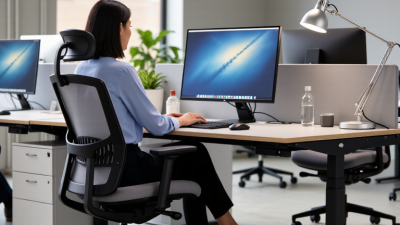
Choose a chair with adjustable seat height, usable lumbar support, and a seat that leaves a little space behind your knees. Your feet should rest flat, or on a footrest, without pressure under your thighs. The backrest should meet your lower back, not push it forward. OSHA workstation guidance also recommends keeping frequently used items within easy reach to limit repeated stretching. A common mistake is focusing on the chair alone. A supportive chair cannot fix a desk set too high, and a perfect setup may still feel wrong after an hour. Test the adjustments during real tasks, then revisit them as your comfort and work habits change.
Positioning Monitors, Keyboards, and Pointing Devices
Set the monitor directly in front of you, about an arm’s length away. The screen should feel readable without leaning forward. For many people, its top edge sits at or slightly below eye level. If you wear bifocals, a lower screen may feel more comfortable. Small adjustments matter.
Place the keyboard close enough that your elbows stay near your sides and bend comfortably. Keep your wrists straight, not pressed against a sharp desk edge. Your shoulders should feel loose while you type. Try moving the keyboard a few centimeters; that small change can ease reaching. Not perfectly aligned? That is normal.
Keep your mouse or other pointing device beside the keyboard, on the same surface and within easy reach. Your upper arm should stay relaxed, rather than reaching outward. Use a light grip and move from the arm when practical, not just the wrist. If you work with two monitors, center the screen you use most; place the other beside it. A laptop often needs a separate keyboard and pointing device when raised to viewing height. Still, a setup can look correct and feel wrong after an hour. Notice where tension appears, then adjust one item at a time.
10 Best Ergonomic Workstation Design Ideas for Offices
Position monitors, keyboards, and pointing devices to support a comfortable, neutral working posture. These angle ranges are practical guidelines; adjust the setup to the individual.
How to use this: Keep the screen slightly below eye level, position the keyboard and pointing device so elbows stay comfortably near the body, and adjust the chair and desk to support relaxed knees. Angle targets are general guidance, not medical requirements.
Reference: OSHA Computer Workstations eTool and public occupational ergonomics guidance. Individual recommendations may vary.
Improving Lighting, Storage, and Movement
Good workstation design starts with the light you actually use. Place the desk near a window when possible, but turn the screen away from direct glare. A small adjustable lamp can brighten paper notes without lighting up the whole room. On cloudy days, check whether the screen feels too bright against the surrounding space. I still misjudge this sometimes. A quick adjustment is better than squinting through a meeting.
Storage should keep daily tools close without filling every open surface. Put frequently used items, such as a notebook or headset, within easy reach. Move spare cables and rarely used files into labeled drawers or boxes. Leave a little empty desk space; it makes switching between tasks easier. Avoid storing heavy supplies above shoulder height, where reaching can feel awkward.
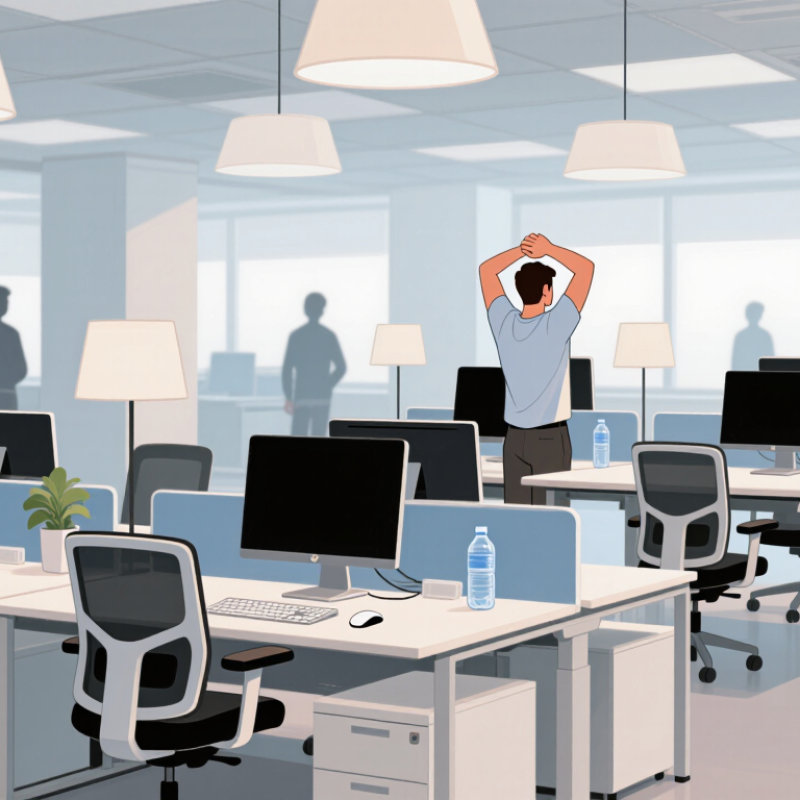
Tips: Take a short movement break every 30 to 60 minutes. Keep water or a timer in sight as a gentle reminder. If the desk allows, alternate sitting and standing gradually rather than staying upright all day. Walk to refill your water. Notice which items make you twist or stretch repeatedly, then rearrange them. Your setup may need a few imperfect trials before it feels comfortable.
Personalizing the Setup and Reviewing Ergonomic Fit
Personalize the workstation around the work you actually do. A designer who studies detailed drawings may need a larger screen area, while frequent video calls make camera height and lighting more important. Keep the monitor at a comfortable viewing distance, with its top near eye level, and adjust text size before leaning forward. Small changes matter.
Set the chair so your feet rest flat or on a footrest, and keep your elbows close to your sides while typing. Your shoulders should feel relaxed, not lifted. A keyboard and mouse that sit too far apart can quietly pull your arms outward. Not every desk cooperates. Move the tools closer, or consider a separate keyboard when using a laptop for long sessions.
Review the fit during a normal workday, not just when the chair is empty. Notice whether you crane your neck, perch on the seat edge, or reach for frequently used items. Change one thing at a time, then check again after a few days. Do not chase symmetry. Bodies and tasks differ, and a setup that looks tidy may still feel awkward. Keep a brief note of what causes discomfort and when it appears; it can help guide practical adjustments or a conversation with a qualified ergonomics professional.